
Backups
What a backup holds
Section titled “What a backup holds”A backup ZIP contains the node’s settings (config.xml), SQLite database (nodearr.db) and, if it exists, identity key (node.key). The database holds your app connections, friends, sharing choices and transfer records. The key identifies your node to its friends.
Restoring a backup that includes node.key preserves that identity, so friends do not need to pair again. Older backups, or backups made before the transport first starts, may lack the key. Check the ZIP before using it to move a node. Without the original key, you must pair with each friend again.
A backup excludes your media library and download folder. Back up those files separately if you need them.
When they are made
Section titled “When they are made”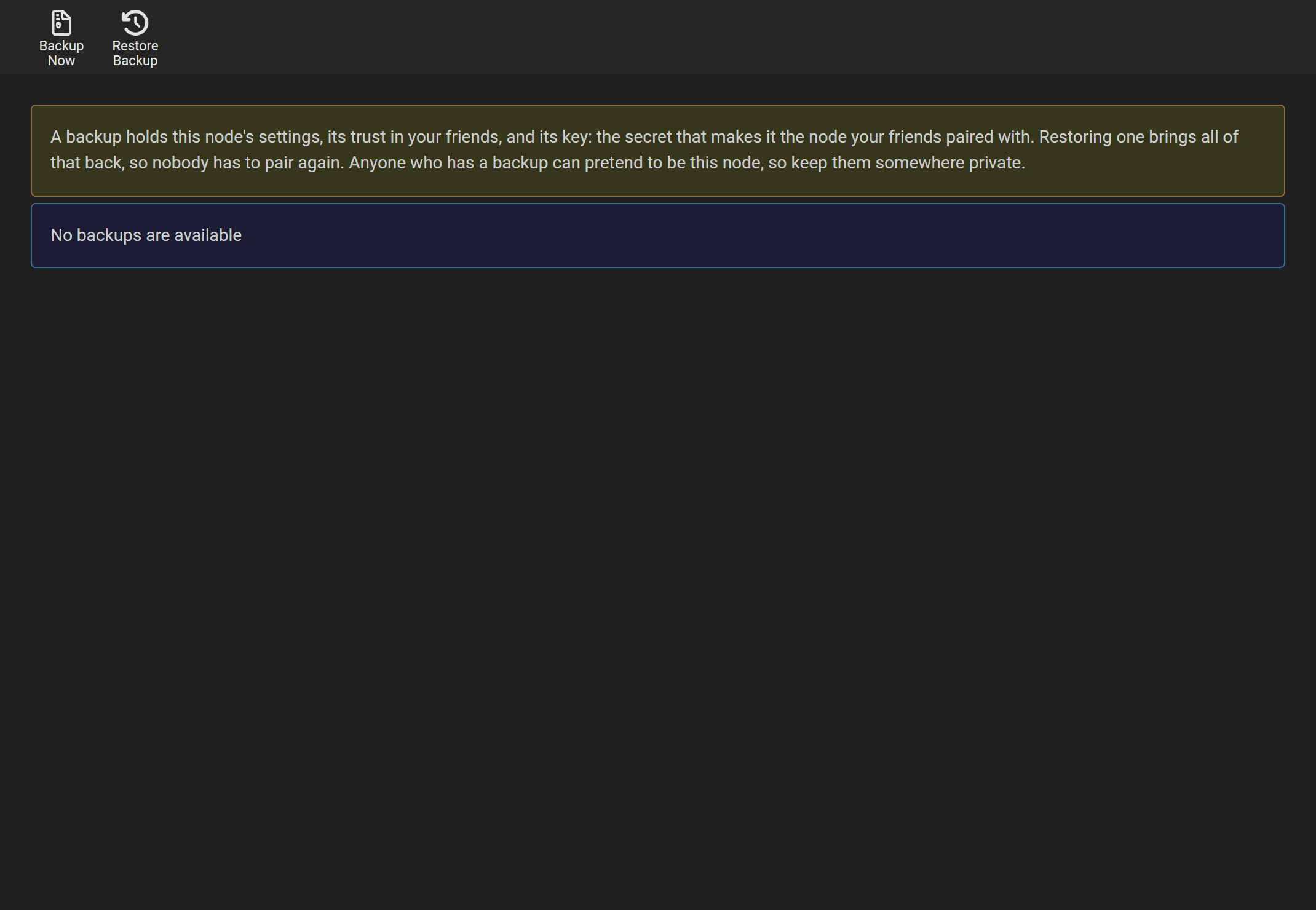
- Scheduled backups run every 7 days and are kept for 28 days by default. Change Folder, Interval and Retention in the Backups section under Settings > General. Choose a folder on another disk if possible.
- To create a manual backup, go to System > Backup and select Backup Now. Do this before moving your node or making changes you may need to undo. Manual backups remain until you delete them; the retention setting applies only to scheduled backups.
System > Backup lists both kinds of backup and lets you download or delete them.
Restoring
Section titled “Restoring”Restore only backups you made or obtained from someone you trust. Restored settings control how Nodearr runs.
- Go to System > Backup.
- Select Restore beside a listed backup. To upload a backup from elsewhere, select Restore Backup and choose its
.zipfile. You can also restore a.dbdatabase file alone, but that does not restoreconfig.xmlornode.key. - After Nodearr restarts, sign in with the credentials saved in the restored database.
The restored key takes effect when the transport restarts. Nodearr does not replace the identity of a running transport (ADR 0013).
Moving a node to a new machine
Section titled “Moving a node to a new machine”- On the old machine, go to System > Backup, select Backup Now and download the backup. Check that the ZIP contains
node.key. - Stop the old node, and do not start it again. Two nodes with the same key confuse every friend: each would reach whichever answered first.
- Install Nodearr on the new machine (Installing), start it, and sign in.
- On the new node, go to System > Backup, select Restore Backup and upload the ZIP. After the restart, use the sign-in credentials from the old node.
- Go to Settings > Apps. Check Application Server and Nodearr Server for each connection; either address may have changed. Save any changes to update Nodearr’s entries in the Arr app. Also check Path Mappings and Download Folder under Settings > Node.
- Go to Nodes > Trusted Nodes and select Check connection for each friend. Direct means file transfers can resume. Automatic connection checks run every 15 minutes; if a connection stays Relay only, see Troubleshooting.
Your friends need to do nothing.
Docker
Section titled “Docker”The container’s data folder is /config. Keep a copy of /config/Backups elsewhere, or stop the container and copy all of /config.
To move to another machine, stop the old container first. Either restore a backup into a new container or move the entire /config volume. Check the app addresses, path mappings and download mount before resuming transfers. Keep the old container stopped so only one node uses the identity key.
PostgreSQL
Section titled “PostgreSQL”The database in these backups is SQLite, Nodearr’s default. If you use the inherited PostgreSQL option, back up and restore that database separately: Nodearr’s zip does not include it. See Settings.