
Getting started
Nodearr connects your Arr apps to libraries shared by people you trust. Each person runs their own node and chooses what to share. This guide takes you from installation to a file imported by your Arr app.
Before you start
Section titled “Before you start”- Have a supported library app running: Sonarr, Radarr, Lidarr or Whisparr. You will need its address and API key, found in that app under Settings > General.
- Choose a machine where Nodearr can read your libraries and your Arr apps can read its completed downloads. Running Nodearr alongside your apps usually makes this easier.
- To finish pairing and try a transfer, have a friend with Nodearr running and at least one file to share. You can install Nodearr and connect your apps before they are ready.
Prowlarr is optional. Connect each library app directly to Nodearr even if you already use Prowlarr.
Install Nodearr
Section titled “Install Nodearr”Choose your environment. Each tab contains the steps for that installation.
Nodearr 0.8.1 (pre-release)
32-bit installers and portable ZIPs
- Installer, 32-bit Nodearr.0.8.1.win-x86-installer.exe
- ZIP, 64-bit Nodearr.0.8.1.win-x64.zip
- ZIP, 32-bit Nodearr.0.8.1.win-x86.zip
Before running a package, compare its SHA-256 hash with its entry in SHA256SUMS.
- Run the Windows installer (
.exe) you downloaded. It installs into Program Files. - Keep When you sign in, in the tray selected. Nodearr runs as you and can read whatever your account can.
- Finish the installer.
The installer adds two Windows Firewall rules: one letting UDP in to nodearr-transport.exe, which is how friends’ nodes reach yours, and one opening the web port, 6633, so Arr apps on other machines or in Docker can reach Nodearr. Uninstalling removes both.
Choose a service or manual startup instead
Select When the computer starts, as a Windows service in the installer to run Nodearr even when nobody is signed in. It runs as LocalService, which may not be able to read your library or a network share.
If System > Status reports unreadable files when Nodearr runs as a service, open Windows Services, find Nodearr, open Properties and select Log On. Choose an account with access to the library.
Select Not automatically if you prefer to start Nodearr from the Start menu yourself.
The data folder is C:\ProgramData\Nodearr, whichever way it starts. Installing over an older version, or uninstalling, leaves it alone. 32-bit builds (win-x86) are available for older machines.
Use a portable ZIP or install a service manually
Unpack Nodearr.<version>.win-x64.zip anywhere and run Nodearr.exe for the tray, or Nodearr.Console.exe in a terminal. ServiceInstall.exe and ServiceUninstall.exe, run as administrator, add and remove the service and the firewall rules, as the installer does. Windows may ask about the firewall the first time Nodearr runs from the ZIP. Allow it, or friends cannot connect.
Nodearr 0.8.1 (pre-release)
ARM and Alpine packages
- ARM64 Nodearr.0.8.1.linux-arm64.tar.gz
- ARM, 32-bit Nodearr.0.8.1.linux-arm.tar.gz
- x64, musl (Alpine) Nodearr.0.8.1.linux-musl-x64.tar.gz
- ARM64, musl (Alpine) Nodearr.0.8.1.linux-musl-arm64.tar.gz
Before running a package, compare its SHA-256 hash with its entry in SHA256SUMS.
Choose the archive for your machine:
| Archive | For |
|---|---|
linux-x64 |
x86-64 with glibc: Debian, Ubuntu, Fedora and most others |
linux-arm64 |
64-bit ARM with glibc, such as Raspberry Pi OS 64-bit |
linux-arm |
32-bit ARM with glibc |
linux-musl-x64, linux-musl-arm64 |
Alpine |
The archive includes .NET, but the system still needs its native Linux dependencies, including ICU and OpenSSL. ICU is libicu72 on Debian bookworm and icu-libs on Alpine; check the package name for your distribution and version.
-
Extract the archive you downloaded. Replace
NODEARR_ARCHIVEwith its complete filename:Terminal window tar -xzf NODEARR_ARCHIVE -
Start Nodearr:
Terminal window ./Nodearr/Nodearr -nobrowser -
Open UDP for
nodearr-transportin any firewall on the machine, such asufw, or friends cannot connect directly.
The data folder is ~/.config/Nodearr for the user running Nodearr. If XDG_CONFIG_HOME is set, the default is $XDG_CONFIG_HOME/Nodearr. Use -data=<folder> to choose another location.
Start Nodearr with systemd
To start it with the machine, run it as a service under the same user as your Arr apps. The following systemd unit is an untested example based on Sonarr’s. Replace media with an existing user and group, put the application in /opt/Nodearr, and make /var/lib/nodearr writable by that user before using it:
[Unit]Description=NodearrAfter=network-online.target
[Service]User=mediaGroup=mediaType=simpleExecStart=/opt/Nodearr/Nodearr -nobrowser -data=/var/lib/nodearrTimeoutStopSec=20KillMode=processRestart=on-failure
[Install]WantedBy=multi-user.target
Nodearr 0.8.1 (pre-release)
Before running a package, compare its SHA-256 hash with its entry in SHA256SUMS.
-
Unpack
osx-arm64(Apple silicon) orosx-x64(Intel). -
macOS marks a downloaded archive as quarantined. Clear that mark before the first start, as with Sonarr:
Terminal window xattr -dr com.apple.quarantine Nodearr -
Start Nodearr:
Terminal window ./Nodearr/Nodearr
The data folder is ~/Library/Application Support/Nodearr, or wherever -data= points.
The image is ghcr.io/nodearr/nodearr, for amd64 and arm64. This example adds Nodearr alongside your existing Arr apps.
-
Create a
docker-compose.ymlfile, or add thenodearrservice to your existing Compose file:services:nodearr:image: ghcr.io/nodearr/nodearr:latestrestart: unless-stoppednetwork_mode: hostenvironment:PUID: "1000"PGID: "1000"TZ: Etc/UTCvolumes:- ./config/nodearr:/config- /path/to/shared/downloads:/downloads- /path/to/tv:/tv:ro- /path/to/movies:/movies:ro -
Replace the example paths with your folders.
/downloadsmust refer to the same host folder in Nodearr and every Arr app. For libraries, match the paths the Arr apps already use: if Sonarr sees its library at/data/tv, use/path/to/tv:/data/tv:roin Nodearr. Keep only the library mounts you need, and add mounts for music or other libraries in the same way. -
Set
PUIDandPGIDto a user and group with permission to read the libraries and write to the shared download folder. Match your Arr apps’ user and group where possible. SetTZto your time zone. -
Choose the networking for your host. On Linux, keep
network_mode: host; it gives the best chance of a direct connection and lets Nodearr ask your router to open its UDP port. On Docker Desktop (Windows or macOS), or for bridge networking, remove that line and add this under thenodearrservice instead:ports:- "6633:6633/tcp"- "6633:6633/udp"With bridge networking, forward UDP 6633 on your router to the machine running Nodearr. Docker Desktop gives a container a different public port for every destination; without the forward, friends often cannot connect directly.
-
From the folder containing your edited Compose file, start Nodearr:
Terminal window docker compose up -d nodearr
The image sets the web port to 6633, the bind address to all interfaces, the UDP port to 6633 and the download folder to /downloads. These settings appear as controlled by the environment in the UI.
Change the image defaults or start a new Arr stack
Override the corresponding environment variables in your Compose file if needed. For example, use Nodearr__Server__Port to change the web port with host networking. See environment overrides.
The complete example compose file starts Nodearr, Sonarr and Radarr together. Use it if you are creating a new stack; keep your existing app containers when adding Nodearr to a stack you already run.
Open Nodearr
Section titled “Open Nodearr”- Open
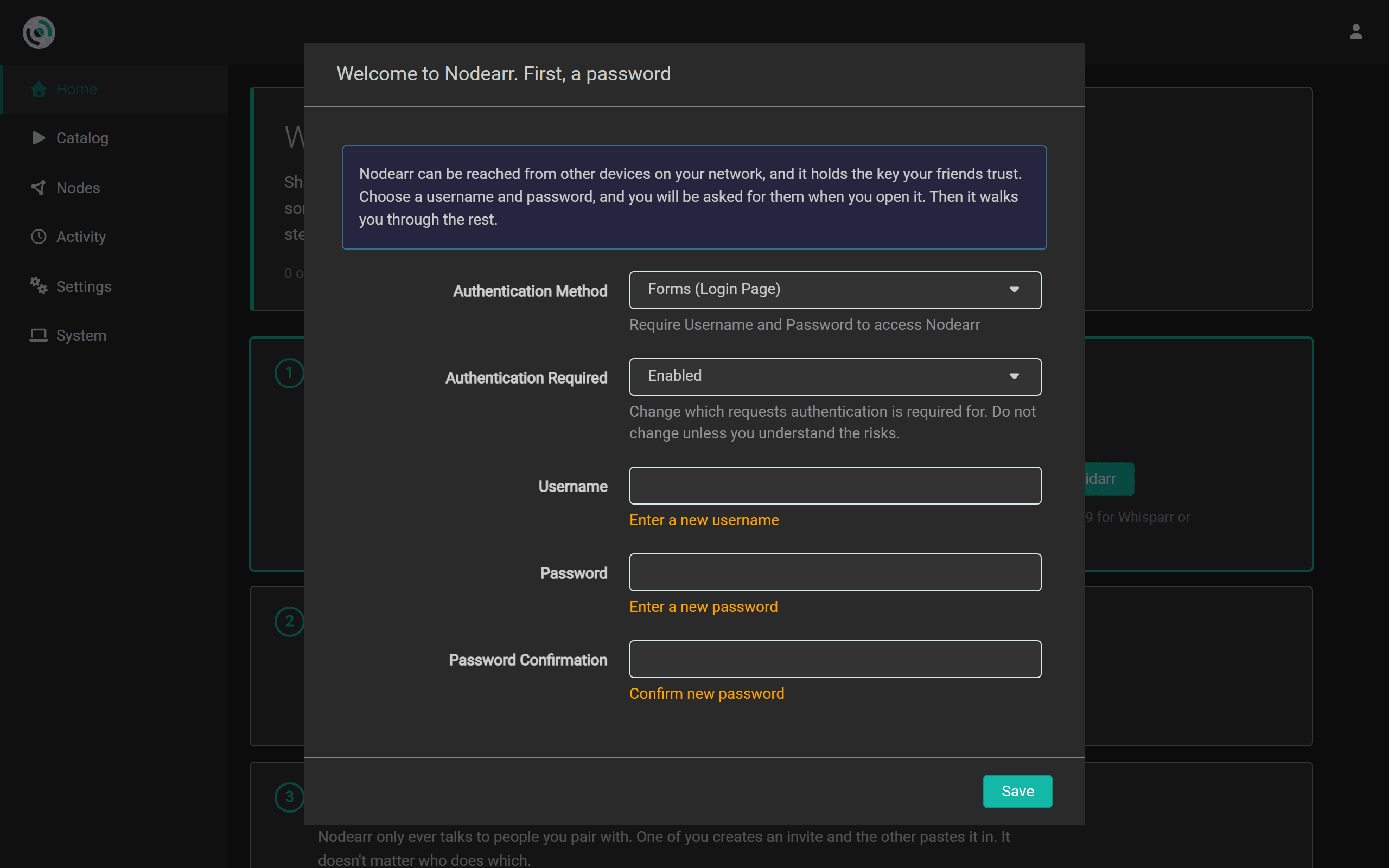
http://localhost:6633on the machine running Nodearr. From another device, use that machine’s address and port 6633. - Choose a username and password when prompted, then select Save. Nodearr stores your identity key and Arr API keys, so keep sign-in enabled. You can change authentication settings later under Settings > General.
See the first sign-in screen
Connect your apps
Section titled “Connect your apps”Connect each library app you want to use. First check folder access, then fill in and save the connection.
Check folder access
Section titled “Check folder access”Where transfers go
The Arr app must be able to read Nodearr’s completed downloads at the path Nodearr reports. Nodearr checks this through the app’s file browser and reports problems on System > Status.
- In Docker, mount one folder at the same path, such as
/downloads, in Nodearr and in every app. - Outside Docker, apps on the same machine usually use the same path. The default is
downloadsin Nodearr’s data folder. Change Download Folder under Settings > Node if needed. - If the app sees that folder at a different path, add a remote path mapping in the Arr app under Settings > Download Clients. Map the path Nodearr reports to the path the app can read.
When Nodearr sees the library at another path
To send a library file to a friend, Nodearr reads the path reported by the Arr app. If that path differs from the one Nodearr can read, add a path mapping in Nodearr under Settings > Apps, in Path Mappings:
| Host | Remote path | Local path |
|---|---|---|
| The app’s host, as in its Application Server address | The path the app reports, such as /tv/ |
Where Nodearr finds it, such as D:\Media\TV\ |
Check Catalog > Local to see each file’s path and whether Nodearr can read it. System > Status warns about missing files and permission problems; see Friends are refused your files. These files can still appear in a friend’s catalog, but transfers fail until Nodearr can read them.
Fill in the connection
Section titled “Fill in the connection”See the connection form
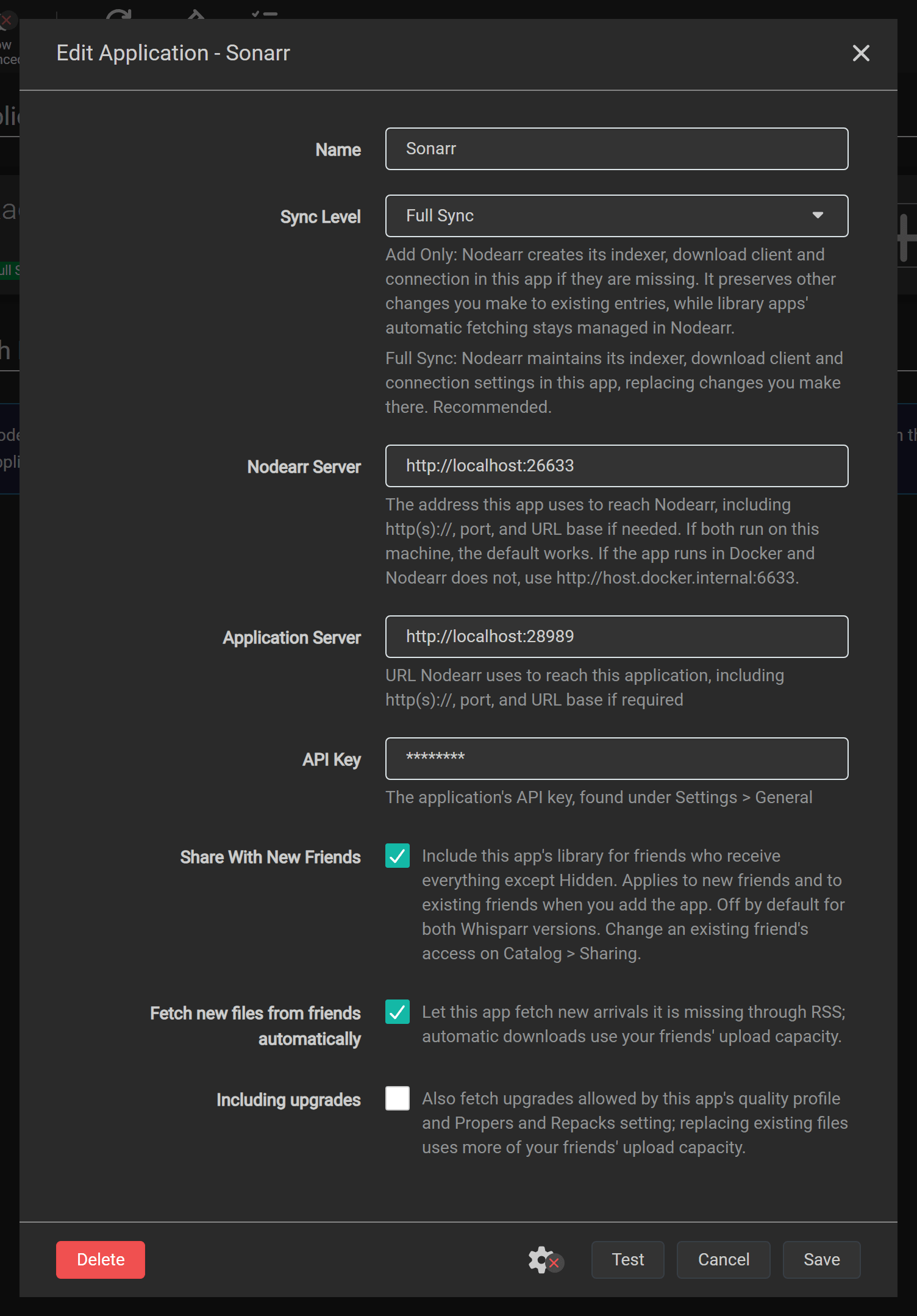
| Field | What it is |
|---|---|
| Name | A name you choose to identify this connection in Nodearr. |
| Sync Level | Leave Full Sync selected for setup. It maintains Nodearr’s indexer, download client and webhook settings in the app, replacing changes you make there. Add Only creates missing entries and preserves your changes to existing ones. Disabled stops library imports and registration updates. |
| Nodearr Server | The address the Arr app uses to reach Nodearr. The default works when both run on the same machine outside Docker. |
| Application Server | The address Nodearr uses to reach the Arr app. |
| API Key | The Arr app’s API key, found in that app under Settings > General. |
| Share With New Friends | Includes this app’s library when a friend is offered everything except Hidden. Applies to new friends and to existing friends when you add the app. Off by default for both Whisparr versions; on for other library apps. To change access for an existing friend, use the per-friend app choices on Catalog > Sharing. |
Advanced connection fields
| Field | What it is |
|---|---|
| Username, Password (advanced) | Credentials for a reverse proxy that requires HTTP Basic authentication. Leave these empty if the app is not behind such a proxy. |
| Download Category (advanced) | The category the app uses when sending downloads to Nodearr. |
| Sync Categories (advanced) | The categories the app searches on Nodearr’s indexer. |
The two server addresses point in opposite directions. Check both when an app runs in Docker or on another machine.
The defaults for each app
| App | Default address | Needs at least |
|---|---|---|
| Sonarr | http://localhost:8989 |
3.0.5 |
| Radarr | http://localhost:7878 |
3.0 |
| Whisparr v3 | http://localhost:6969 |
3.0 |
| Whisparr v2 | http://localhost:6969 |
2.0, below 3.0 |
| Lidarr | http://localhost:8686 |
2.0 |
| Prowlarr | http://localhost:9696 |
1.0 |
Default download and search categories
| App | Download category | Searched in |
|---|---|---|
| Sonarr | tv |
5030, 5040, 5045, and 5070 for anime |
| Radarr | movies |
2030, 2040, 2045 |
| Whisparr v3 | whisparr |
6000, 6040, 6045, 6080, 6090 |
| Whisparr v2 | whisparr |
6000, 6040, 6045, 6080, 6090 |
| Lidarr | music |
3000, 3010, 3040 |
| Prowlarr |
Choose the Whisparr version you run. Both versions use the name Whisparr, but Nodearr has separate connection types for v2 and v3. Test reports a version mismatch if you choose the wrong one.
Server addresses
Inside a container, localhost means that container. Choose the arrangement you use. These examples use Sonarr; substitute your app’s port and the service names from your Compose file.
Both on the host
When both apps run directly on the same machine:
| Field | Value |
|---|---|
| Nodearr Server | http://localhost:6633 |
| Application Server | http://localhost:8989 |
Nodearr on the host
When Nodearr runs on the machine or uses Docker’s host network, and Sonarr runs in a bridge container:
| Field | Value |
|---|---|
| Nodearr Server | http://host.docker.internal:6633 |
| Application Server | http://localhost:8989, using Sonarr’s published host port |
The app’s port must be published on the host. On Linux, also add this to the Arr app’s service so it can resolve host.docker.internal:
extra_hosts: - "host.docker.internal:host-gateway"Both on a bridge
When Nodearr and Sonarr use the same Docker bridge network:
| Field | Value |
|---|---|
| Nodearr Server | http://nodearr:6633 |
| Application Server | http://sonarr:8989 |
Use your Compose service names. Both containers must be on the same network for those names to resolve.
Add the connection
To connect an app:
- In Nodearr, go to Settings > Apps and select +.
- Choose your library app. For Whisparr, choose the connection type for the version you run. Fill in the fields described in this section.
- Select Test to check the address, API key, app type and supported version.
- Select Save. Nodearr registers itself in the app and imports its library. A large library can take a few minutes.
Repeat the connection steps for each library app. After saving, check Catalog > Local for its imported library and System > Status for folder-access warnings.
Name your node
Section titled “Name your node”On Home, under Choose your name, enter a name your friends will recognize and select Use this name. You can change it later under Settings > Node, in Name.
Connect with a friend
Section titled “Connect with a friend”Both nodes must be running and online. One person creates an invite and the other uses it. Each person chooses what they share; your friend’s choice does not change yours.
Keep your node running and online while your friend redeems the invite. In Nodearr, go to Nodes > Invites.
See an invite ready to send
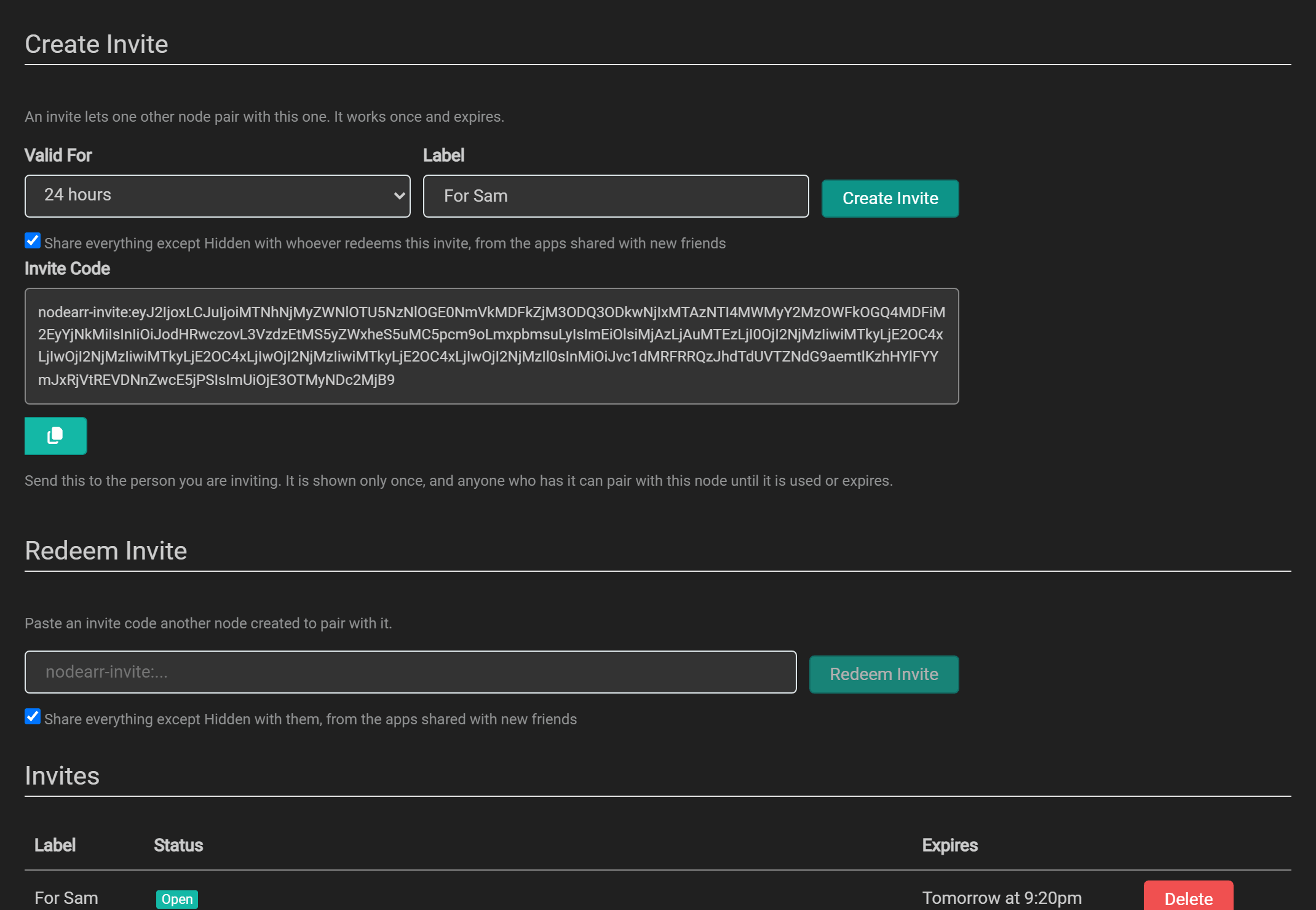
- Set Valid For to the invite’s lifetime. The default is 24 hours. Enter a Label to remind yourself who it is for.
- Choose what to share. The sharing checkbox, Share everything except Hidden with whoever redeems this invite, from the apps shared with new friends, is selected by default. It includes existing and future files from apps with Share With New Friends enabled. That setting starts on for Sonarr, Radarr and Lidarr, and off for both Whisparr versions. Clear the checkbox to share only lists you assign to this friend.
- Select Create Invite and copy the code. Send it privately to your friend.
When your friend redeems the code, both nodes appear as Trusted on Nodes > Trusted Nodes.
An invite can be used once by one node, before it expires. Nodes > Invites shows whether an invite is open, used or expired.
The code contains your node’s ID, network addresses, expiry time and a secret. Anyone who obtains an unused code can pair with your node, so send it only to its intended recipient. Your node stores a hash of the secret rather than the secret itself.
- In Nodearr, go to Nodes > Invites and paste the code under Redeem Invite.
- Choose what you will share with this friend. The checkbox Share everything except Hidden with them, from the apps shared with new friends includes apps with Share With New Friends enabled; both Whisparr versions are excluded by default. Clear the checkbox to share only lists.
- Select Redeem Invite.
Your node connects to your friend’s node and redeems the invite. After pairing succeeds, both nodes appear as Trusted on Nodes > Trusted Nodes, under the names you each chose.
If it fails:
- “This invite has expired” or “did not accept this invite”: it ran out, or it was used already. Ask for a new one.
- “Unable to reach the node that created this invite”: your node could not get through to your friend’s. Both nodes need to be running and online. See Troubleshooting.
- “turned away too many invites from this node lately”: your node tried five codes in 15 minutes that did not work. Wait 15 minutes, then try once with a fresh code.
Verify your first transfer
Section titled “Verify your first transfer”Both nodes must be running, and your friend must share at least one file you want.
- In Nodearr, go to Nodes > Trusted Nodes and select Check connection for your friend. Direct means files can move. Relay only allows pairing and connection checks, but no catalog, poster or media; if it stays that way, see Relay only.
- Open Catalog > Peer Catalog and select Sync Peer Catalogs. Find a file your friend shares. If their catalog is empty, ask them to check their app choices and Hidden on Catalog > Sharing.
- Select Get it beside the file or on its card, or use the download icon over its poster, check the choices, then select Get it in the dialog. You can also add it in your Arr app and run an interactive search there. If the app rejects a result, read its reason; your quality profile or other rules may exclude it.
- In Nodearr, open Activity > Transfers and wait for Completed. The file has then passed verification. Your Arr app imports it at its next download-client check, usually within a minute, then removes the completed download from Nodearr.
- Check the title in your Arr app to confirm that the file was imported. If the transfer completed but import failed, check the app’s queue and Nodearr’s System > Status for a folder-access warning.
If a connection or import still fails, Troubleshooting explains the warnings and recovery steps.